Testing and Closing Periods
Use the Close Period control to test and close periods for Device, Group, or Station Nodes. A defined time period can be closed once the data is refined to the point at which it is fully acceptable to be utilized by production accounting. This may include resolving data quality, exceptions, and contingent PPAs created during the period to be closed. See Close Period and Prior Period Adjustments in the CygNet Measurement Concepts topic for more information about closing periods and PPA generation.
Prior to closing a period for a Node, you can test it to ensure that any outstanding issues or errors are resolved. After a period has been closed, any changes made to the record may generate a prior period adjustment (PPA), if configured to do so in the System Options. See Configuring System Options for more information about close period settings and data change and PPA creation settings.
You must have proper security authorization to test and close periods. See FMS Security (and CLOSE security event) for information about configuring security access for testing and closing periods.
Testing or Closing Periods
The following options are available to test or close period(s) for selected stations. See Toolbar for more options.
| Option | Description |
|---|---|
|
|
Click to Test close the selected Node record in order to identify and fix any outstanding issues that need to be resolved in order to close the period. |
|
|
Click to Close Period for the selected Node record. Note: If errors are identified within the selected time window, the station will not be closed until it meets the criteria configured in the System Options for Close Period. |
|
Close through (C): |
Select the Contract day (C) through which to close period for the selected Node(s). Note: You can close periods up until two days ago (current date minus two contract days). Attempts to close through yesterday, today, or in the future will fail. This can be done in either of the following ways.
|
To Test Close and Close a Period
- Select a Close through (C) date using the date selector.
- Click to select the Node(s) to test/close.
Note: Group Nodes will be resolved down to their station Node entries for display in the control.
- Prior to closing a period, click Test
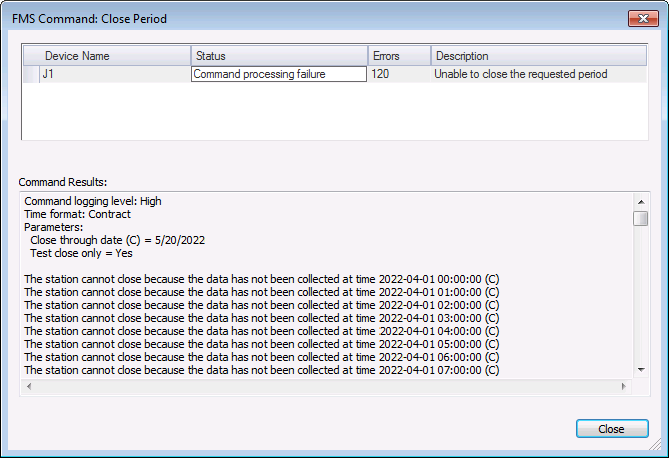
 to test the period closure to make sure there are no outstanding issues to be resolved. Results of the test, if any, will be displayed with the oldest result first.
 - Resolve all test result issues preventing the close period operation, if any.
Note: It can be helpful to set the Node in question as the Session Node to aid in resolving issues efficiently using other controls.
- Repeat steps 2-4 until there are no outstanding issues for stations you wish to close.
- Select the stations to close. Either right-click to access the context menu and then click Close period, or click
 (Close Period) in the control tool bar, to initiate the Close Period command. A confirmation dialog box is displayed. Click Yes to continue.
 - Results appear in the Command Results (bottom) pane. After the command dialog box is closed, you can view command results in the FMS Explorer Command Log. See Viewing Command Logs for more information.
|
Test Close and Close a Period |